From Paper to QR Code: How to Turn Your Printed Menu Into a Digital Menu With AI
Got your menu stuck in a PDF or a photo? Lekro's AI menu scanner reads it and builds a digital, QR-code-ready menu in seconds — no retyping. Here's how it actually works.
From Paper to QR Code: How to Turn Your Printed Menu Into a Digital Menu With AI
Here’s a situation almost every restaurant owner knows. You already have a menu. It’s beautiful, the prices are right, the descriptions took you weeks to get perfect — and it lives as a printed card, a laminated sheet, or a PDF your designer sent you two years ago. Then someone tells you that you really should have a digital menu people can pull up with a QR code, and your heart sinks a little, because it sounds like you’re about to retype the whole thing from scratch.
You’re not. The honest answer in 2026 is that you can take a photo of the menu you already have, and AI will rebuild it as a proper digital menu for you in about the time it takes to read this paragraph. Let me walk you through how that works, and why it’s a much bigger deal than it sounds.
First, what people actually mean by “digital menu”
The phrase gets thrown around loosely, so let’s be precise. A digital menu isn’t a PDF you uploaded to your website. A PDF is a photo of a menu — guests have to pinch, zoom, and squint, and you can’t change a price without re-exporting the whole file.
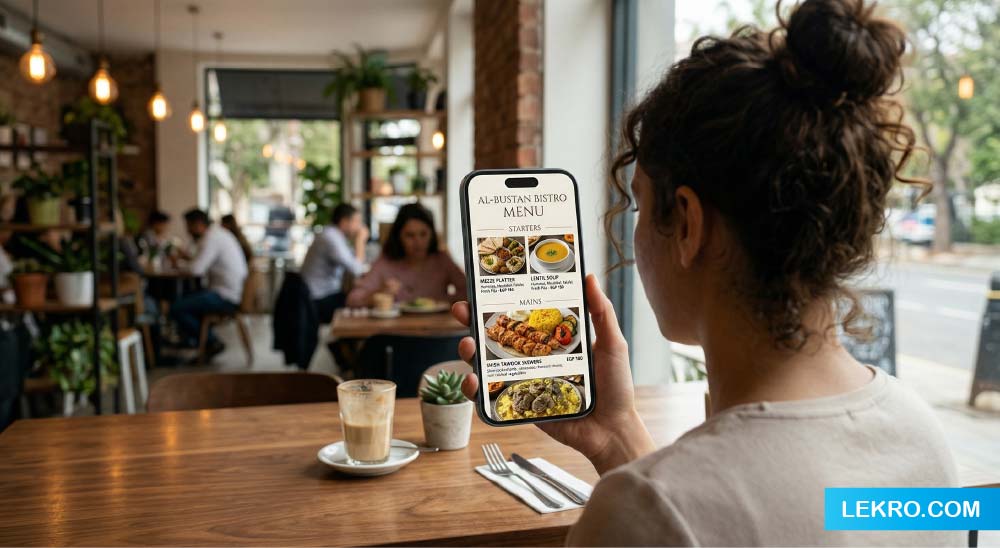
A real digital menu is a mobile-first page built for phones. Guests scan a QR code on the table, the menu loads instantly, and they can browse categories, tap into a dish, see a photo, and read what’s actually in it. You, on the other side, change a price once and it’s live on every table at once. No reprinting, no “sorry, that’s the old price.”
That’s the goal. The problem has always been the starting effort — sitting down and typing out forty dishes, their prices, and their descriptions into yet another system. That’s the wall most owners hit, and it’s exactly the wall AI knocks down.
How AI turns a photo or a PDF into a digital menu
Inside Lekro there’s a tool we call the Menu Digitizer. The idea is simple: instead of you keying everything in, it reads your existing menu and does the typing for you.
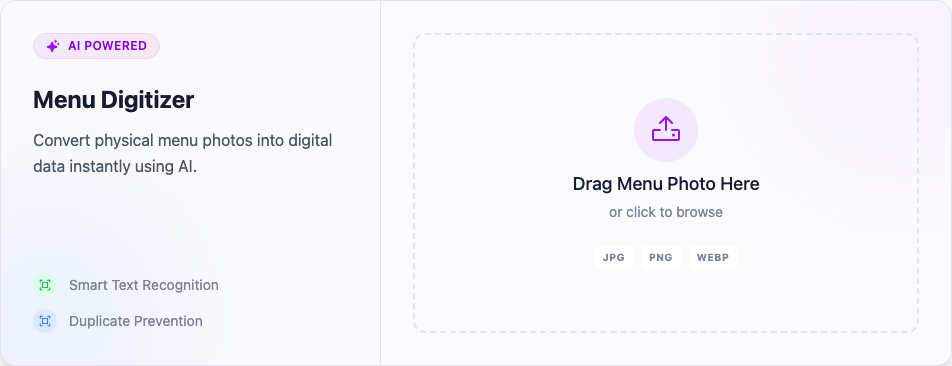
You drag in a picture of your menu — a phone snapshot of the printed card, a screenshot, a JPG or PNG, whatever you have — and hit start. Under the hood it’s doing what used to be called OCR (reading the text off the image), except it’s a lot smarter than the old scanners. It doesn’t just pull out a wall of words; it understands the structure of a menu. It works out which lines are category headers (“Starters,” “Mains,” “Desserts”), which are dish names, which numbers are prices, and which sentences are descriptions. It even catches duplicates so the same item doesn’t land on your menu twice.
A full menu takes a few seconds. What you get back isn’t a blob of text — it’s your menu, already sorted into categories and items, ready to go live.
One practical note, because it genuinely matters: the AI reads what it can see. A sharp, straight-on photo in decent light gives you a near-perfect result. A blurry shot where half the prices are in shadow will come back with a few gaps. You don’t need a fancy camera — you need a clear one. Lay the menu flat, get good light, and snap it square-on. That five-second habit is the difference between “perfect” and “mostly there.”
You review before anything goes live
This part reassures people, so it’s worth saying plainly: nothing gets published behind your back. When the scan finishes, you land on a review screen showing every category and item the AI found — names and prices laid out so you can read them over. You fix anything that came through wrong, delete what you don’t want, and only then apply it. If a photo didn’t give it enough to work with, you toss it and try a better shot. Nothing is saved until you say so.
So the AI does the heavy, boring 95% — the typing — and you keep control over the last 5%, which is the part that actually needs a human eye.
From a scan to a live, QR-code menu
Once you apply the import, the items drop straight into your menu, and now you’re holding the real thing: a clean, mobile-ready digital menu.
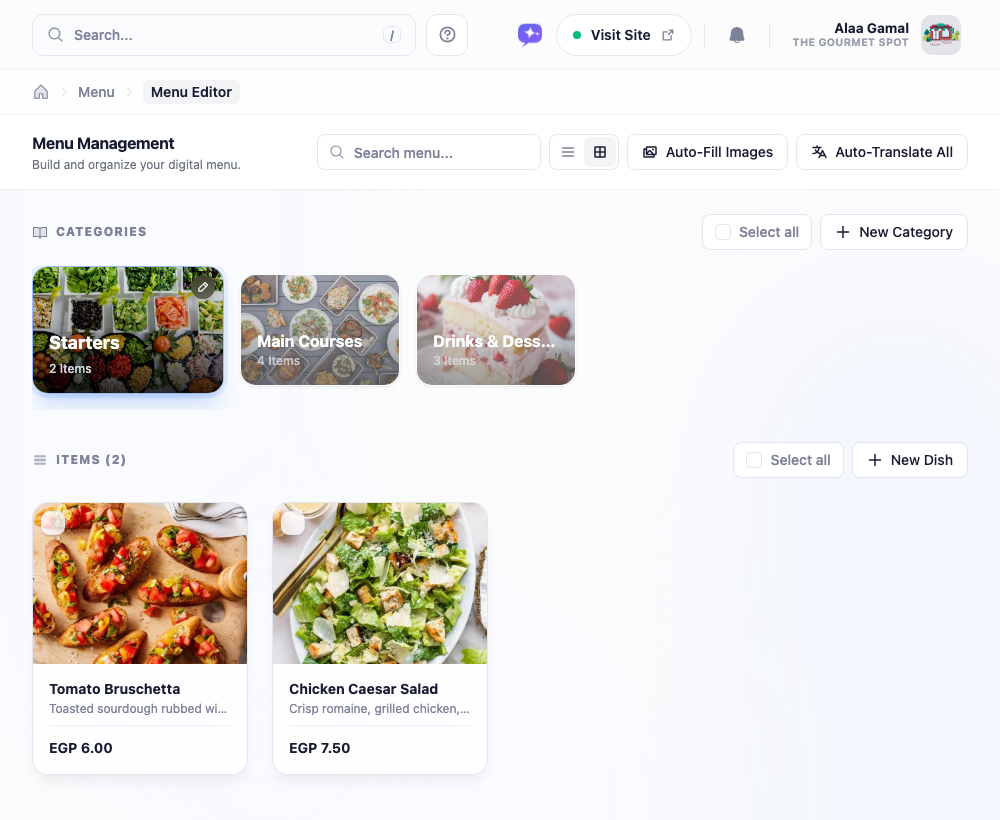
From here the menu is yours to run. You can add photos to your top sellers (and there’s a stock photo library and AI image fill if you don’t have your own), write or auto-generate descriptions, set up add-ons and modifiers, and translate the whole thing into a second language with a couple of clicks. When it’s ready, Lekro hands you a QR code to print and drop on the tables. Guests scan it, your menu opens on their phone, and you’ve gone from a paper card to a contactless digital menu without typing a single dish by hand.
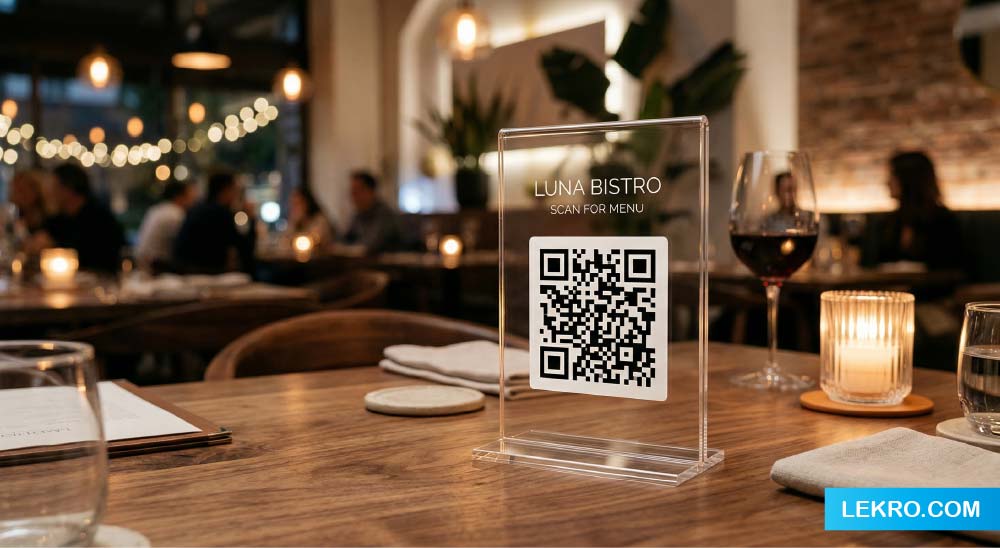
And because it’s digital now, the maintenance that used to be painful becomes trivial. Run out of the salmon? Toggle it off. Bumping prices for the new season? Edit them once. Launching a weekend special? Add it in the morning, pull it Sunday night. Every table sees the change immediately, and you never reprint anything again.
Turn your printed menu into a digital one — for free
Upload a photo or PDF and let Lekro’s AI build your QR code menu in seconds. No retyping, no design skills, no printing costs.
Why this beats the two old ways
For years, restaurants had two options to get a menu online, and both were rough:
- Retype everything by hand. Accurate, but soul-crushing, and the reason so many owners just never got around to it. A long menu is an evening you don’t get back.
- Slap the PDF on a link. Fast, but a terrible experience — guests fighting to zoom in on a desktop-shaped document on a phone screen, and you re-exporting a file every time a price changes.
Scanning your menu with AI is the first approach that’s both fast and good. You get the accuracy of a properly typed-out menu without doing the typing, and you end up with a real mobile menu instead of a frozen PDF. It’s the shortcut that doesn’t cost you quality — which is rare.
Getting your first digital menu live today
If you’ve been putting this off because it felt like a project, here’s the genuinely short version of what it now takes:
- Take a clear, straight-on photo of your printed menu (or grab the PDF).
- Drop it into the Menu Digitizer and start the scan.
- Review what the AI pulled out, fix any small slips, and apply it.
- Add a few photos, publish, and print your QR code.
That’s an afternoon task compressed into a coffee break. The menu you already spent time perfecting doesn’t need to be rebuilt — it just needs to be read, and that’s the one part you no longer have to do yourself.
The restaurants that look effortlessly modern aren’t the ones with the biggest budgets. They’re the ones who stopped treating “going digital” as a giant migration and started treating it as a five-minute scan. Your menu is already done. Now let the AI put it on a phone.
Tags