
Setting Your Working Hours
Tell customers when you're open. Set hours per day, mark closed days, and copy one day to the rest.
Dashboard only
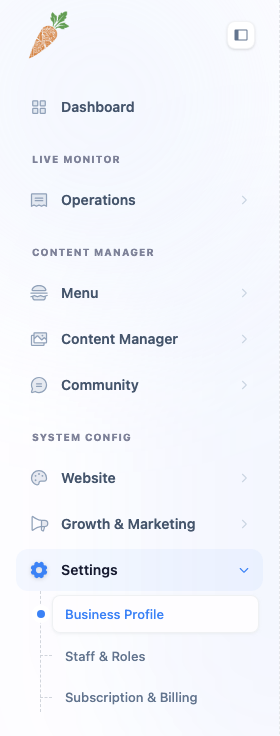
Your opening hours show up on your public site, so customers know whether they can come by now or need to wait until tomorrow. The Working Hours tab is a straightforward week, one row per day.
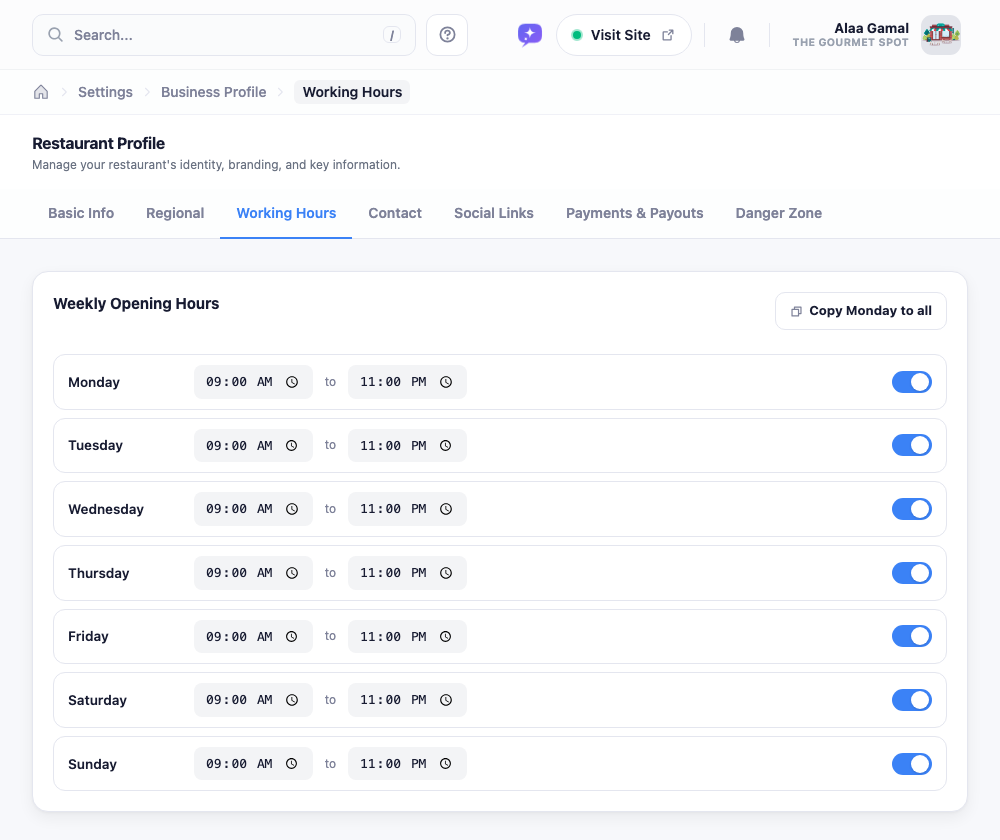
Each day has an open time, a close time, and a toggle on the right. Flip the toggle off and the day reads Closed all day: the time fields disappear, which is exactly what you want for the day you’re shut.
Most restaurants keep the same hours most days, so there’s a shortcut for that: set Monday how you like it, then hit Copy Monday to all and every other day inherits the same times. Tweak the exceptions afterwards (a later weekend close, a midweek day off) and you’re done.
If you’re open past midnight, set the close time to when you actually lock up (say 02:00). And don’t forget the save bar at the bottom; hours don’t update on your site until you save.