Handling Contact Messages
Read and reply to messages customers send through your website's contact form, right from your dashboard.
Dashboard only
Your Lekro website comes with a built-in contact form, so a customer never has to go hunting for your phone number or email to reach you. A catering enquiry, a question about allergies, a request to book the back room for a birthday: they all land in one place, and you can answer most of them without ever leaving the dashboard.
Where Messages Land
Every message submitted through your website arrives in Community → Contact Inbox: your restaurant’s inbox.
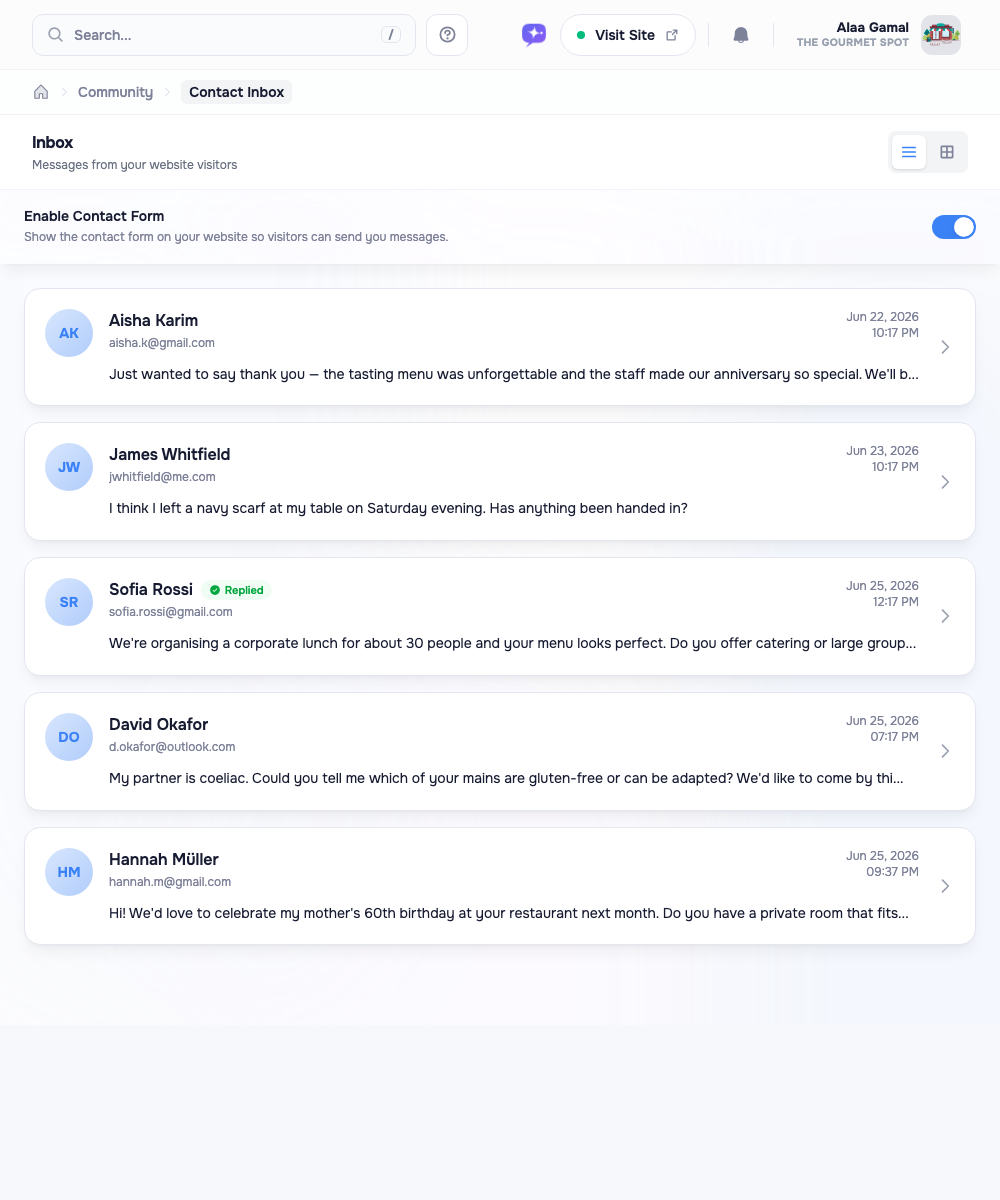
Each card shows the sender’s name and email, the first line or two of their message, and when it came in. Once you’ve answered someone, their card picks up a green Replied badge so you can tell at a glance what’s still outstanding. Read your inbox as a list, or flip to a grid of cards using the toggle at the top, whichever you prefer.
Reading and Replying
Click any message to open it in full. From here you can read the whole thing and write your reply in the same window.
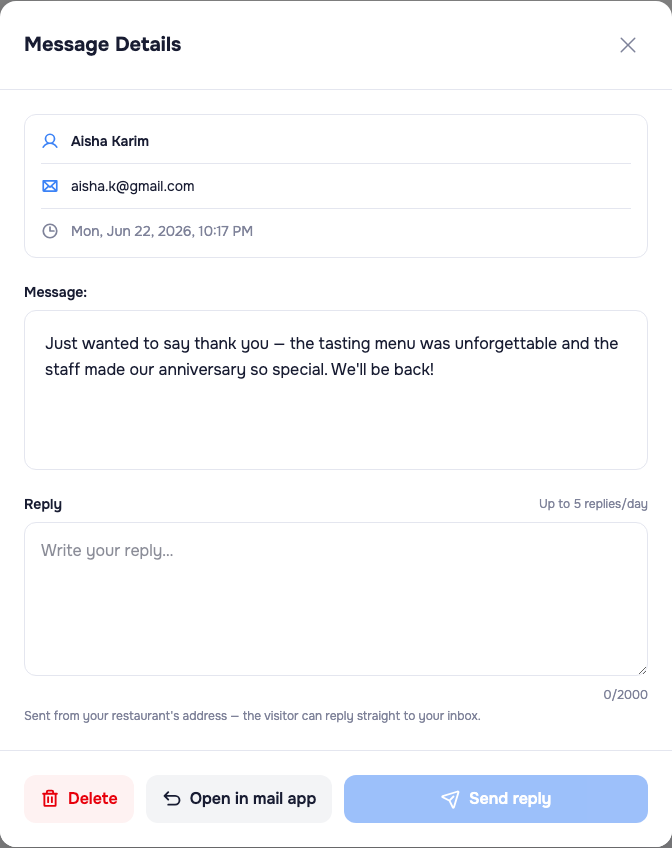
Type your response in the reply box and hit Send reply. Your message goes straight to the customer from your restaurant’s address, and they can reply back to your own inbox: no separate email app needed. The note under the box shows how many replies your plan allows per day.
Prefer to answer from your own email instead? Open in mail app launches your usual mail client (Gmail, Outlook, Apple Mail…) with the customer’s address already filled in. And if a message is spam or no longer relevant, Delete clears it out.
Note: Replies are sent from your restaurant’s email address through Lekro. There’s a daily limit per plan to keep things tidy and prevent abuse, more than enough for normal day-to-day correspondence.
Turning the Form On or Off
The Enable Contact Form toggle at the top of the page controls whether the form appears on your website at all. Switch it off and visitors won’t see it, so no new messages come in.
That’s handy if you’re swamped during a busy season, or you’d rather steer everyone toward phone or social instead. Just remember to turn it back on. The contact form is one of the easiest ways for a high-intent customer to reach you.
Why a Quick Reply Pays Off
Someone who fills out a contact form is already interested. They’re planning an event, checking whether you can handle a dietary need, or asking about private dining: exactly the kind of visitor most likely to become a paying guest.
Tip: Aim to reply within 24 hours. The faster you answer, the more curious visitors turn into actual diners, and the less likely they are to book with whoever replied first.
Good Habits
- Check the inbox daily. Fold it into your morning routine, right alongside reservations.
- Keep replies short and useful. Answer the question, add a gentle next step (“We’d love to host your event: here’s our private dining menu”), and sign off warmly.
- Delete sparingly. Unless it’s obviously spam, keep messages for your records. You may want to look back at a past enquiry.
The contact form is a quiet workhorse. It won’t draw the buzz of a new menu launch, but the conversations it starts can turn into some of your most valuable bookings.