Languages, Currency, and Taxes
Set the languages your site speaks, the currency your prices show in, your timezone, and any VAT or service charge.
Dashboard only
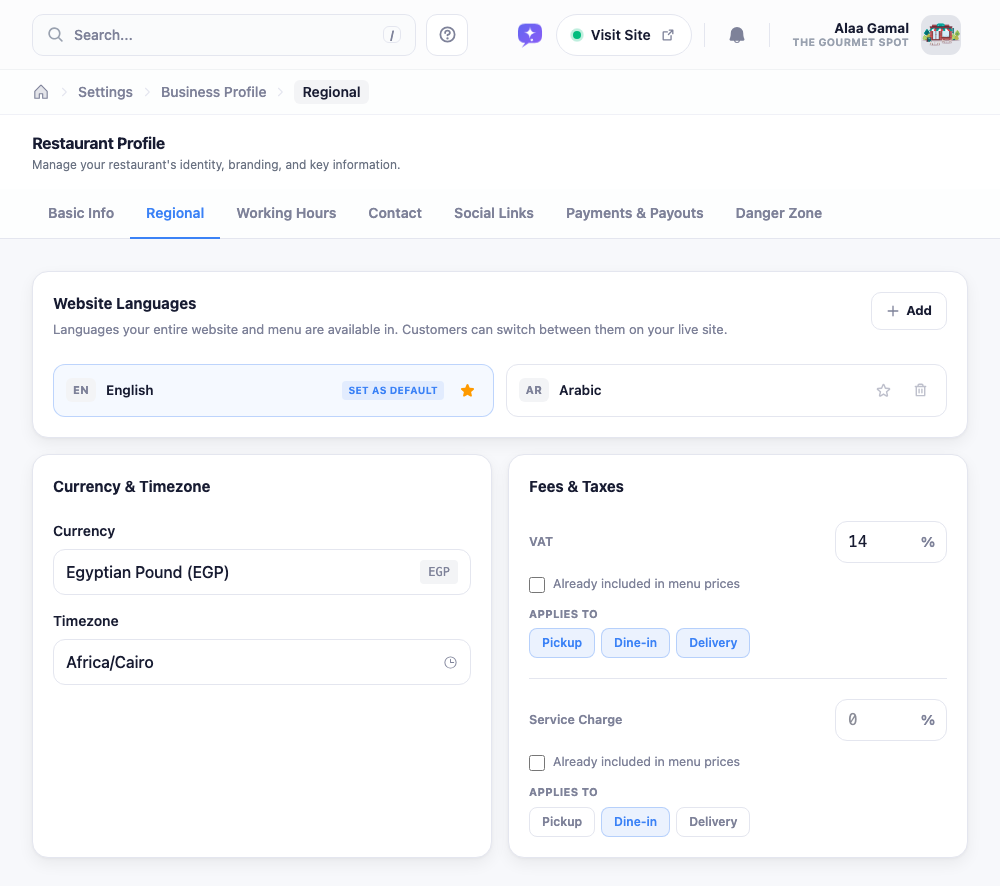
The Regional tab is where your restaurant’s locale lives: the languages it speaks, the currency on the menu, your timezone, and the tax or service charge you add on top. Most of it you’ll set once and forget.
Languages
Each language your site supports gets a row. The one marked with a filled star is your default: the language a visitor sees first, and the one your menu falls back to when a translation is missing. Click the star on another row to hand it the default, and use the trash icon to drop a language you no longer want. (You can’t remove the default; make something else the default first.)
To add one, hit Add and pick from the list. How many languages you can run depends on your plan; once you reach that limit, Add tells you so instead of opening the list, the cue to upgrade.
Adding a language here only tells the site which languages to offer. Actually translating your menu into them is a separate job, covered in Translating Your Menu.
Currency and timezone
Currency controls the symbol shown next to every price on your storefront. Click it, search for the one you want, and pick it: changing it doesn’t rewrite your prices, it just changes how they’re displayed, so double-check the numbers still make sense afterwards.
Timezone matters more than it looks. It’s what reservation slots and order timestamps are measured against, so if bookings start showing up at odd hours, this is the first place to check.
VAT and service charge
The Fees & Taxes card has two independent rates: VAT and a service charge. For each one you can:
- type a percentage,
- tick Already included in menu prices if your listed prices are tax-inclusive (leave it off and the fee is added at checkout instead), and
- choose which order types it applies to: dine-in, pickup, delivery, since plenty of places charge a service fee on dine-in but not pickup.
Leave a rate at zero and it simply doesn’t apply. There’s no separate on/off switch; zero is off.