Getting Your QR Codes
Find, brand, and download the QR codes that send customers straight to your menu, reservations, or any live page.
Dashboard only
You don’t generate QR codes in Lekro: they already exist. Every page you’ve switched on has one waiting, pointing to the right place. Your job is to brand them if you want, download the ones you need, and print them.
Where they live
Website → QR Studio shows one card per live page.
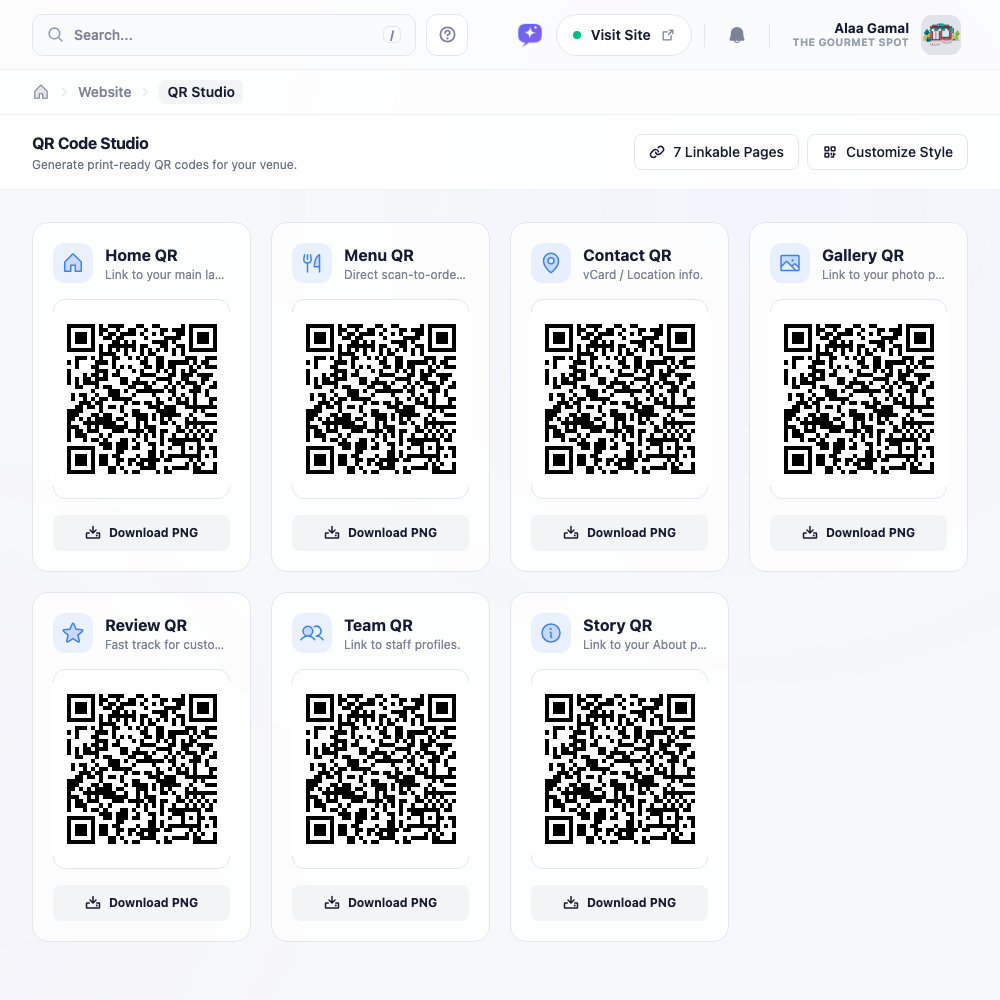
The set covers Home, Menu, Gallery, Reviews, Team, Contact, Story, and Reservations, though you only ever see codes for pages you’ve actually enabled.
Note: Missing a code you expected? The page is switched off. Enable it under Pages & Features and its code appears here automatically.
Which code goes where is worth a thought:
- Menu on tables, table tents, and takeaway bags, the scan-to-order route.
- Reservations on window stickers and printed ads, where someone isn’t seated yet.
- Reviews on the receipt or bill folder, at the moment a happy customer is most likely to act.
Downloading
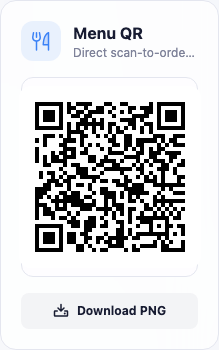
Click Download PNG on any card. The file is high-resolution, suitable for table tents, window stickers, and printed signage.
Branding them
Customize Style opens a design panel with a live preview.
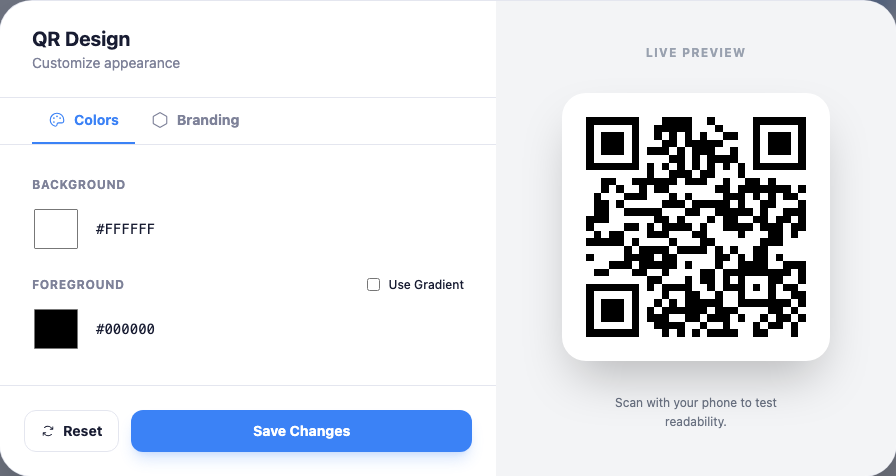
- Colors: background and foreground, or Use Gradient for a two-tone effect.
- Branding: Show Logo places your logo in the centre, with size and corner-rounding controls.
Your style applies to all codes, so they stay consistent. Click Save Changes, then download.
Warning: Keep strong contrast between foreground and background, and go easy on gradients and logo size. A code that looks beautiful and won’t scan is worse than a plain one. The panel invites you to scan the live preview with your phone, do that before printing a hundred table tents, not after.
Dark code on a light background remains the most reliable combination.
Before you print
Test the actual downloaded file, not just the on-screen preview, and test it in the light your restaurant actually has: a dim room and a glossy laminated card together defeat plenty of codes that scan fine on a desk.