Toggling Website Features
Choose which pages appear on your site and what customers can do, ordering, reservations, waiter calls, newsletter sign-up, and WhatsApp.
Dashboard only
Website → Pages & Features controls two different things: the pages customers can visit, and the features they can use. The top half is pages, the bottom half is features, and they save differently.
Pages
Each page is a card with a switch: on means it appears in your site navigation.
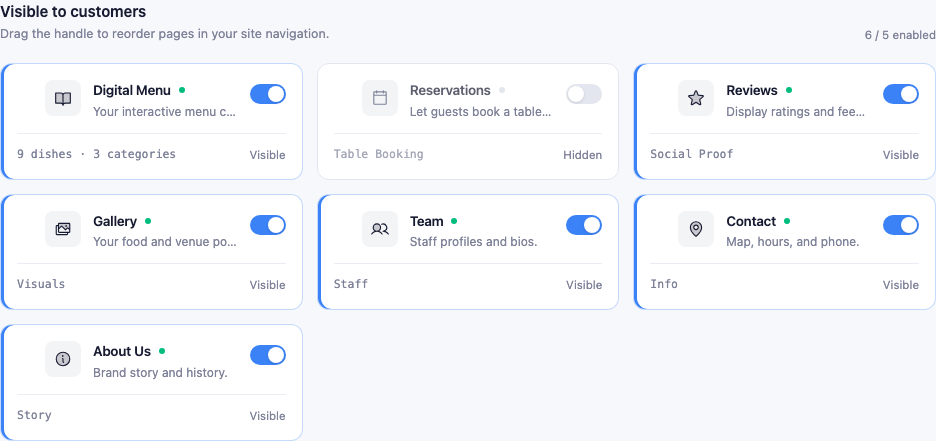
- Drag to reorder. This order is the order customers see in your navigation.
- Each card shows a stat: dish count, photo count, so you can tell what’s behind a page before enabling it.
- The Reservations page needs the Reservations feature. Enabling the page alone does nothing; the feature switch below is what makes it work.
Note: Your plan caps how many pages can be on at once, and a counter shows where you stand. The free plan allows two. Turn one off to free a slot, or see subscription plans.
Features
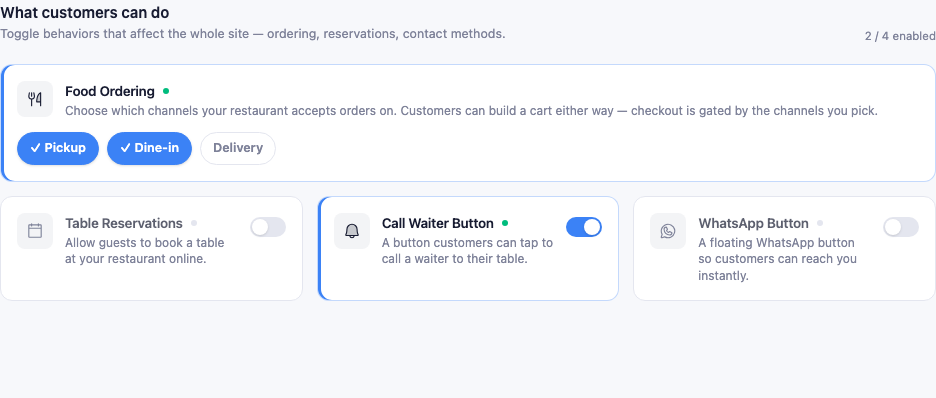
- Food Ordering. Not a single switch but a set of channels: Pickup, Dine-in, Delivery. Select any combination. With none selected, customers can still browse and build a cart, but checkout is disabled with a “not accepting orders” message. Delivery reveals fee and radius fields.
- Table Reservations: shows a booking form where guests pick a date, time, and party size. Bookings land in your Reservations panel.
- Call Waiter Button: puts a button on your menu page; taps notify your staff instantly. Pairs with QR codes on tables.
- Newsletter Sign-up: adds an opt-in checkbox to your order and reservation forms, so guests join your subscriber list while doing something else. The least intrusive way to build a list.
- WhatsApp Button: a floating chat bubble on every page. You’ll be asked for your number the first time.
- Events & Ticketing: sell tickets to events on your site. Only appears if enabled for your restaurant.
Each feature card has a What this does explanation, which is worth reading before switching something on for the first time.
How saving differs
This trips people up:
- Page switches apply immediately. Flip one and it’s live.
- Feature changes are batched. A save bar appears at the bottom with a count of pending changes. Nothing happens until you click Save, or Cancel to back out.
Warning: Switching a page or feature off removes it from your live site as soon as it saves. A customer mid-way through ordering loses access. Turn things off during quiet hours where you can.
Roll out gradually
There’s no advantage to enabling everything at once, and real downside: a reservation form nobody is watching, or an order channel the kitchen isn’t ready for, damages trust faster than a missing feature does.
An order that tends to work:
- Menu and QR codes: no operational change required.
- WhatsApp: easy to manage, and customers like a direct line.
- Newsletter sign-up: passive, no daily work.
- Reservations: once you’ll check the dashboard regularly.
- Ordering: when the kitchen workflow can absorb digital orders.
- Waiter calls: once staff are trained on the alerts.
Two features you handle reliably beat four you handle badly.