Managing Your Account
Update your password, phone, language, notifications, and privacy from one place.
Dashboard only
Your account settings are the personal side of Lekro: the login itself, how the dashboard talks to you, and what happens to your data. Everything here is about you as the owner, separate from your restaurant’s public profile (which lives under Settings → Business Profile).
Finding your settings
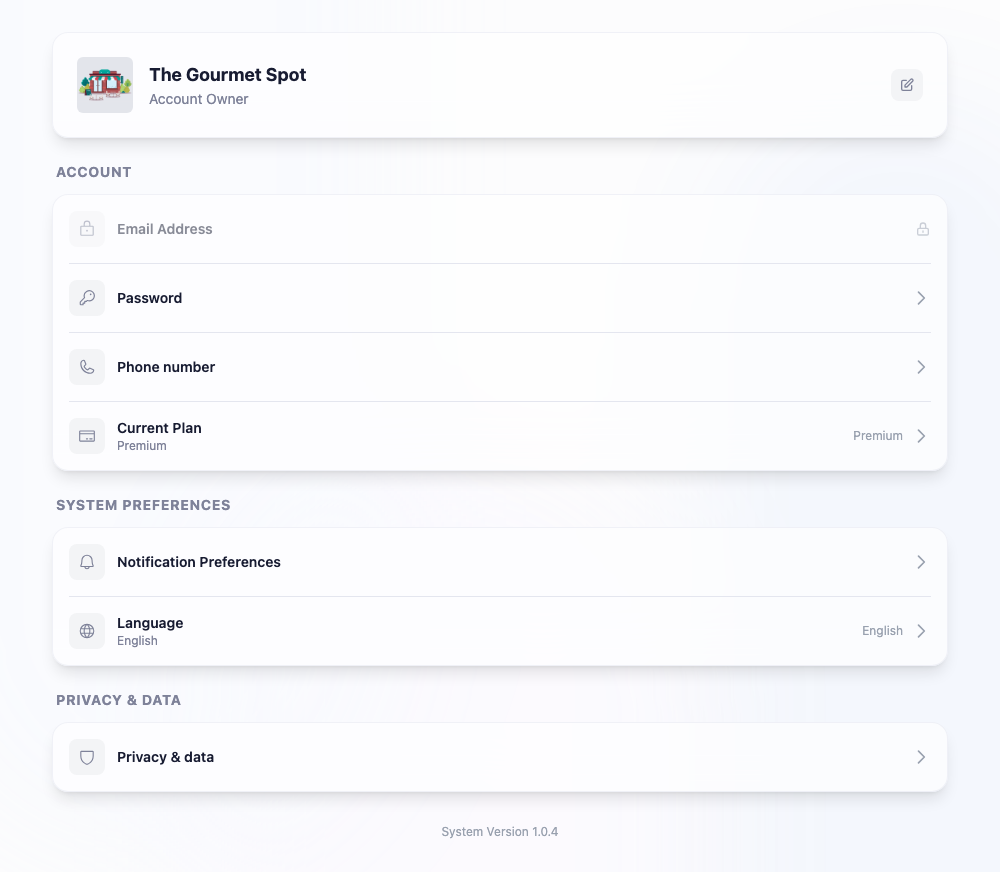
Go to Account. At the top you’ll see your restaurant’s name and logo, with a pencil to jump straight to your public business profile. Below that, settings are grouped into clear sections.
Account
- Email Address: the address you signed up with. It’s shown here for reference but locked, because it’s the identity tied to your account and your billing. Need it changed? Reach out to support.
- Password: opens a form to set a new one. Use something strong and unique; this login holds the keys to your whole restaurant.
- Phone number: manage the number on your account, used for sign-in and recovery.
- Current Plan: shows the plan you’re on and jumps straight to billing.
System Preferences
- Notification Preferences: choose which alerts you want and how you receive them.
- Language: switch the dashboard between English and العربية. This changes your dashboard only, not what guests see on your website (your site’s languages are set in Business Profile).
Privacy & data
The Privacy & data section is where you manage your information and the data you’ve collected: the controls behind the privacy commitments every account gets.
Tip: Set a strong, unique password and keep your recovery phone current. If you ever bring on staff, give them their own logins under Settings → Staff & Roles rather than sharing yours. See Adding and Managing Staff.
Owner account vs. business profile
It’s worth keeping the two straight:
- Account (here). Your personal login and preferences: password, phone, language, notifications.
- Business Profile (Settings → Business Profile). Your restaurant’s public details: name, address, hours, contact info, the languages your website speaks.
When in doubt: if it changes how you sign in or what you see, it’s here. If it changes what a guest sees, it’s in Business Profile.