
Showcasing Your Team
Add staff profiles (photo, name, role, bio) to the Meet the Team page on your website.
Dashboard only
A customer who recognises the chef’s name walks in already feeling like a regular. Staff profiles live at Content Manager → Team Profiles, and each person becomes a card on your public Meet the Team page.
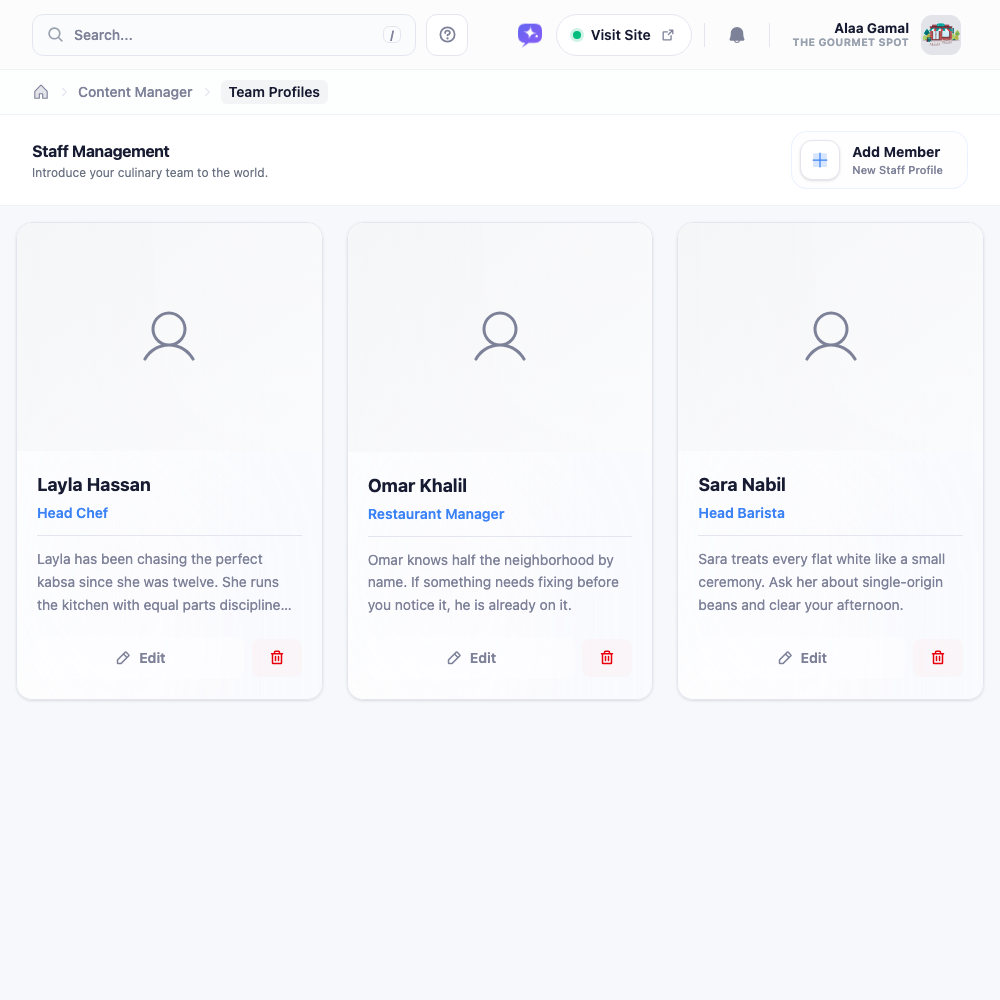
Note: These profiles are public website content, entirely separate from staff accounts under Settings → Staff & Roles. Adding someone here gives them no dashboard access at all, and adding a staff account doesn’t put anyone on this page.
Adding someone
Click Add Member.
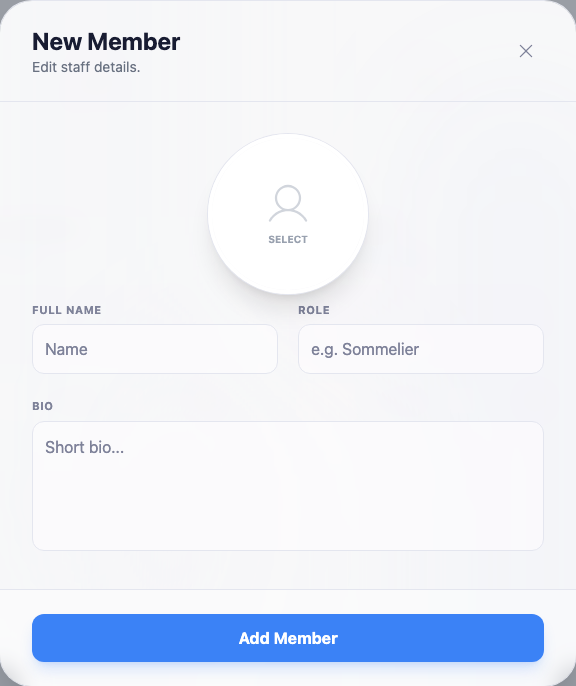
- Photo: tap the circle to choose one. A natural shot in the restaurant, in good light, beats a stiff studio portrait.
- Full Name and Role: both required. “Head Chef”, “Manager”, “Head Barista”.
- Bio: optional, and where the work is.
Save, and the profile appears on your site immediately.
Writing a bio worth reading
Drop the corporate register. Compare:
Chef Ahmed has 15 years of culinary experience across fine-dining establishments.
with:
Ahmed’s been perfecting his kabsa since he was twelve. He joined us in 2019 and hasn’t stopped tinkering with spice blends since.
Two or three sentences is plenty. It should read like an introduction at the table, not a CV summary.
If you run a bilingual site, remember the bio is customer-facing text. Write it in each language you publish in, or one set of visitors gets a blank.
Keeping it current
Edit updates a photo, role, or bio: useful after a promotion. The delete button removes someone who’s moved on.
Do that promptly. A team page listing people who left months ago undercuts exactly the authenticity it exists to build, and it’s the kind of thing customers notice and staff mention.