
How Reservations Work
Where bookings land, how to move each one through service, and how to record phone and walk-in bookings on the same board.
Dashboard and mobile app
A guest books from their phone and the booking appears on your board a second later. This article covers running that board day to day; configuring reservation settings covers setting the rules.
How guests book
With reservations switched on, your site offers Book a Table. The guest picks a date, time, and party size and submits. Depending on your settings the booking is confirmed instantly or held as a request for you to approve.
The board
Operations → Reservations, grouped by date with Today at the top.
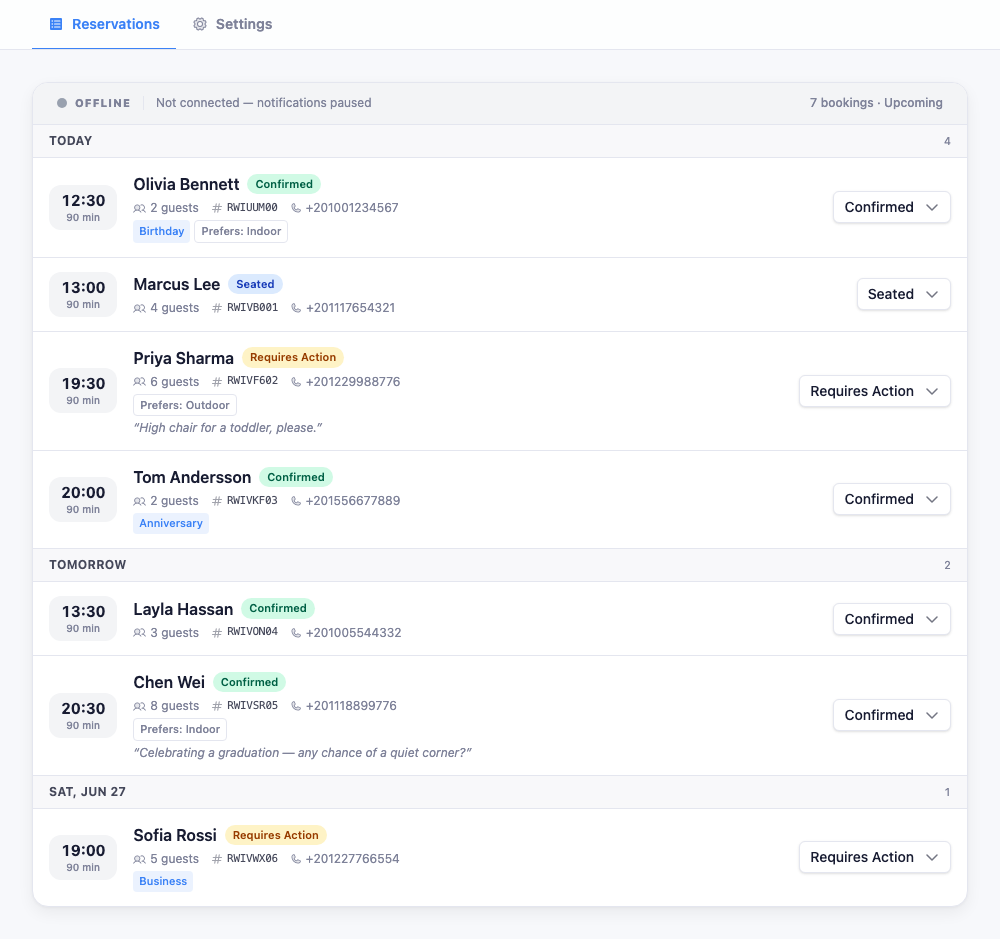
Jump to Today, Tomorrow, Yesterday, a specific date, or Upcoming for every future booking in one list. List or grid view, as you prefer.
As with orders, check the banner reads Live. Offline means new bookings won’t appear until you reload.
Reading a booking

Alongside time and party size you get the booking reference, the guest’s phone, and whatever extras they added: an occasion (birthday, anniversary), a seating preference (indoor, outdoor, bar), or a written special request. If you take deposits, a payment badge shows the state, hold placed, deposit paid, captured, released, or refunded.
Recording phone and walk-in bookings
Not every booking starts online, and the board is no use if half your reservations live in someone’s head.
New booking records a phone or walk-in reservation, and it holds the table exactly like an online one. You enter guest name (required), date, time, party size, and optionally phone, email, and a note, “window seat”, “birthday”.
Using this consistently is what makes the rest of the board trustworthy. A capacity view that only knows about online bookings will happily let you overbook the room.
Moving a booking through service
The dropdown on each booking sets its status:
| Status | Meaning |
|---|---|
| Requires Action | A request awaiting your approval |
| Confirmed | You’re expecting them |
| Seated | Arrived and sat |
| Completed | Dined and left |
| No-Show | Never turned up |
| Cancelled | Called off |
The dropdown only offers moves that make sense from the current status, so a completed booking can’t jump back to pending. Guests see confirmation updates on their side, so keeping the board current keeps them informed too.
Tip: Mark Seated on arrival and No-Show when someone clearly isn’t coming. It takes a second and it’s the only way your no-show rate becomes a number you can actually act on, such as deciding whether to start taking deposits.