
Adding Sections from the Library
Browse the section library to drop a hero, menu block, gallery, reviews wall, contact form, or promo banner onto any page.
Dashboard only
You don’t build blocks from scratch. Lekro keeps a library of ready-made sections, and adding one is a matter of picking it off the shelf. Each arrives with placeholder content so you can see the shape before filling it in.
Opening the library
In the Structure tab, click Add Element above the section list. The library opens as a grid of wireframe thumbnails.
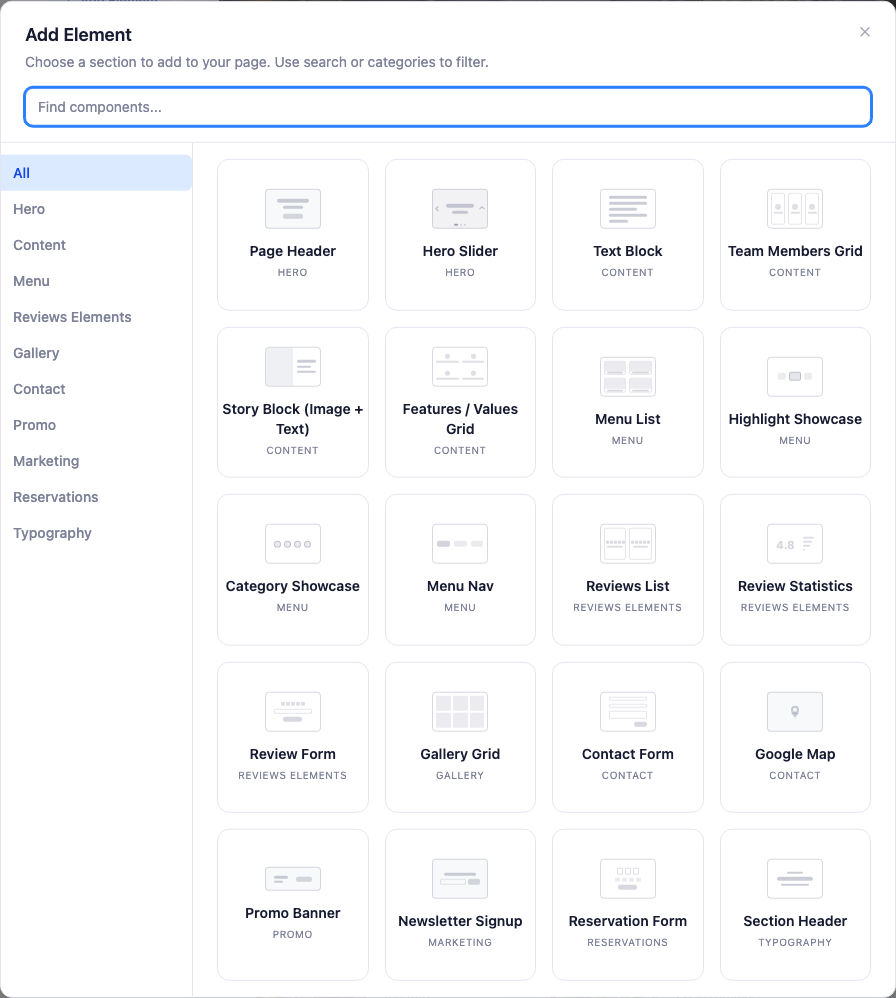
Categories run down the left so you’re not scrolling everything at once, and the search box filters by name as you type.
Note: A new section always lands at the bottom of the page, whatever you had selected. Drag it into position afterwards. See building your pages with sections.
What’s in the library
Sections are grouped by the job they do:
| Group | What’s in it |
|---|---|
| Hero | The banner at the top of a page. A still Page Header, or a Hero Slider that rotates through images |
| Content | Text blocks, a story block pairing image with words, a features grid, a team grid |
| Menu | Menu list, featured-dish showcase, menu nav bar, category showcase |
| Reviews Elements | A reviews wall, a ratings statistics block, or a form inviting new reviews |
| Gallery | Photo grids and other arrangements |
| Contact | Contact form and Google map |
| Promo | A slim banner for an announcement or offer |
| Other | Newsletter signup, reservation form, section headers |
Choosing well
A few things worth knowing before you fill a page with blocks:
- Sections pull live data. A menu block shows your real menu, a reviews wall shows your real reviews. You don’t copy content into them: they read what’s already in your dashboard.
- That means empty sections look empty. A reviews wall on a restaurant with no reviews yet is a blank space on your homepage. Add those blocks once there’s something to show.
- One hero per page. Two banners stacked at the top rarely reads as intentional.
Once a section is on the page, editing a section’s content covers changing what’s inside it.