
Building Your Pages with Sections
Arrange each page a section at a time in the Structure tab, reorder, hide, duplicate, and delete blocks with a live preview.
Dashboard only
Every page on your site is a stack of blocks: a header at the top, your menu below it, maybe a gallery, then contact details at the foot. Lekro calls these sections, and the Structure tab is where you stack and reorder them.
Finding it
Open Website → Design and switch to the Structure tab. The left column lists the sections on the current page; the preview shows them in place.
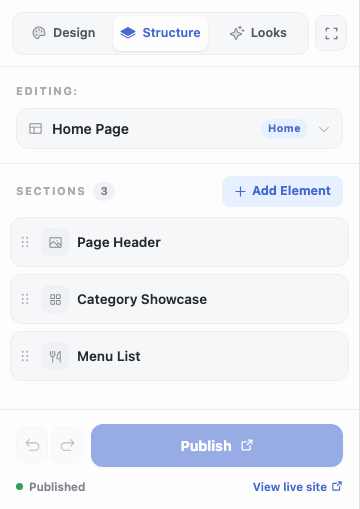
Click any section in the preview and the Structure list jumps to it. That’s the fastest route when you can see what you want to change but don’t know what it’s called.
Pick the page first
The selector at the top reads Editing: followed by the current page. Each page (Home, Menu, Gallery, and so on) has its own separate stack of sections, so switch here before rearranging anything.
The list only offers pages you’ve switched on. If the page you want is missing, it isn’t disabled by accident: it’s off in Pages & Features. There’s an Enable more pages shortcut at the bottom of the selector that takes you straight there.
Reordering
Each row has a grip on the left. Drag it up or down; the order in this list is the order visitors scroll through.
The three row actions
Hover a row and three buttons appear:
- Eye (hide): removes the section from your live site but keeps it in the list, greyed out, with all its settings intact. This is the right tool for a seasonal promo you’ll want back.
- Duplicate: copies the section directly below the original, settings included. Useful for two similar blocks with different content.
- Delete: permanent, with a confirmation first.
The distinction between hide and delete is worth internalising: hiding is reversible and keeps your configuration, deleting is not. When in doubt, hide.
Adding and editing
Add Element at the top of the list opens the section library. See adding sections from the library.
To change what’s inside a section, click its name to open the editor, covered in editing a section’s content.
Nothing here reaches your live site as you work. Everything stays a private draft until you publish, which is its own step: reviewing and publishing your changes.