
Importing and Exporting Your Menu
Download your menu as CSV or JSON, edit it in a spreadsheet, and bring it back in, with the exact columns Lekro expects.
Dashboard only
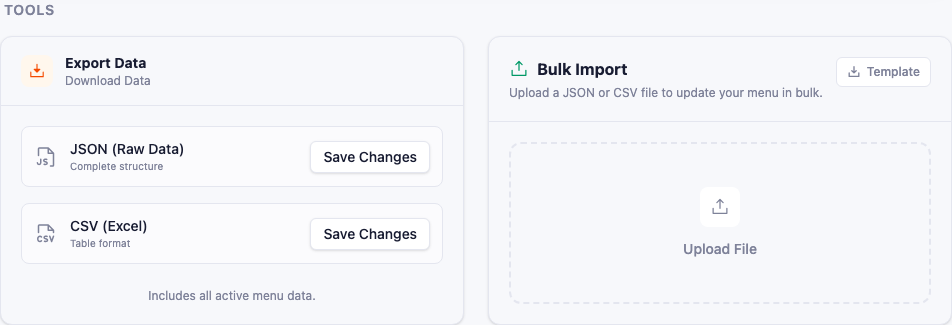
Editing eighty prices one dish at a time is miserable. Exporting your menu to a spreadsheet, changing a column, and importing it back takes minutes. Both halves live on Menu → Import / Export, below the AI import.
Exporting
Two formats, one click each:
- CSV (Excel) opens as a table in Excel or Google Sheets. This is the one for editing.
- JSON (Raw Data) is the complete data structure: better as an exact archive, or for handing to a developer.
Exports include all active menu data.
The round trip
The reason CSV matters is that export and import share the same columns, so export → edit → import works without losing fields.
| Column | Required | Notes |
|---|---|---|
| Category | Yes | Created if it doesn’t exist |
| Item Name | Yes | |
| Price | Yes | Number only |
| Description | No | |
| Discount | No | Percentage, 0 for none |
| Labels | No | Separate multiple with ;, e.g. vegetarian;popular |
| Special | No | Yes / No |
| Hidden | No | Yes / No |
| Unavailable | No | Yes / No |
Building a file from scratch? Click Template on the Import card for a starter CSV with these exact headers and a few example rows. Guessing at column names is the most common reason an import fails validation.
Importing
Drop a CSV or JSON file into the Bulk Import card and Lekro validates it before touching anything. You get a count of the categories and items it found, plus any blockers (a missing price, an empty name) so you can fix the file and retry rather than importing something broken.
Then pick how it lands:
- Merge / Append adds the file’s items on top of your existing menu.
- Replace All clears your current menu and puts the file in its place.
Warning: Replace All deletes your existing menu, including the photos, modifier links, and translations attached to those dishes, none of which the CSV columns carry. You’ll have to type REPLACE to confirm. Take a backup first.
That caveat is the practical argument for Merge in most situations. If you’re only changing prices, merging updates the matching items without discarding everything else you’ve built around them.
Confirm, and the menu is live immediately.
Which tool for which job
- Menu only exists on paper → extract it from a photo.
- Menu already exists as a spreadsheet → import CSV here.
- Bulk price or label changes → export CSV, edit, merge back.
- Just want a safety copy → backups are simpler than exports and restore in one click.