Extracting a Menu from a Photo
Turn a photo of your printed menu into categories and dishes, then choose whether to add to your menu or replace it entirely.
Dashboard only
If you already have a printed menu, you don’t need to retype it. The Menu Digitizer reads a photo and turns it into categories and dishes, then shows you everything it found before anything reaches your live menu.
It’s at the top of Menu → Import / Export, on the page titled Menu Intelligence.
Uploading the photo
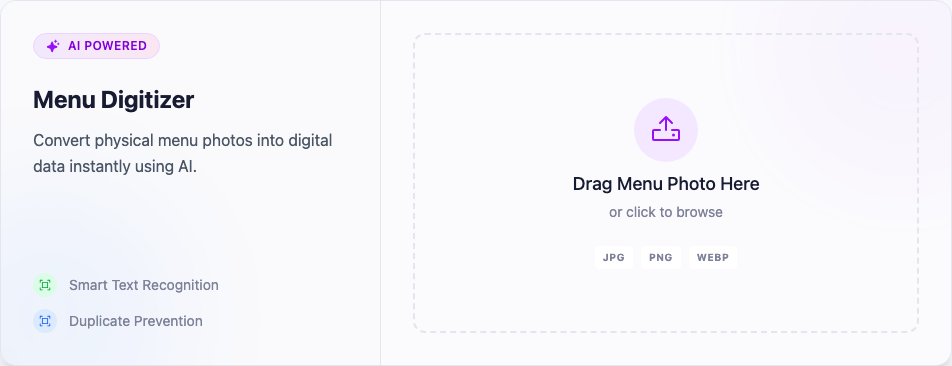
Drag in a photo or click to browse, then click Start AI Scan. Files must be JPG, PNG, or WEBP and under 6 MB: bigger files are rejected before the scan starts, so resize first if your phone shoots large.
The scan reads what it can see. A straight-on shot in good light gives a near-complete menu; a photo at an angle, or with prices in shadow, comes back with gaps. Thirty seconds spent getting a clean shot saves more time than it costs.
The review screen decides everything
Nothing is saved automatically. When the scan finishes you get a review screen listing every category and dish found, each with a checkbox, and badges marking items that Already exist or look like a Duplicate.
Two things here need real attention.
Untick what you don’t want
The extraction is usually good but not perfect. Prices are the most common thing to check: a smudged or oddly formatted number can come through wrong, and it’s far quicker to fix here than to hunt for it later.
Choose the import mode carefully
This is the most consequential control on the screen, and the two options are not variations of each other:
- Add new only: existing dishes are skipped, and only genuinely new items get added. This is the safe default, and the right choice almost always.
- Replace entire menu: your current menu is deleted and replaced with the selected items.
Warning: “Replace entire menu” destroys your existing menu, including photos, modifier links, and translations you’ve built up. Lekro takes an automatic backup first and makes you type REPLACE to confirm, but the safe habit is to use Add new only unless you are deliberately starting over.
Once you’re happy, confirm. The summary tells you exactly what happened: how many categories and items were added, and how many duplicates were skipped.
If the scan found nothing, you’re told so and no credit is spent on a failed extraction.
Monthly import limit
Menu imports draw on their own monthly allowance, shown on the review screen as “N of M AI imports left this month”:
| Plan | AI menu imports per month |
|---|---|
| Free | 5 |
| Premium | 50 |
| Pro | 100 |
A multi-page printed menu means one scan per page, so a long menu can use several of these in a sitting. On the free plan that’s worth planning around.
After the import
The dishes land as ordinary menu items, so everything else works on them normally: add photos, link modifiers, and translate.
If you’d rather import structured data than a photo, importing and exporting your menu covers CSV and JSON.